
Entra ID and MFA: A Guide to Securing Access

Overview
Many organizations use Microsoft Entra ID to manage identities and access across hybrid and cloud-only infrastructures. Entra is a powerful identity provider (IdP) solution that has extensive, configurable features, including for managing multifactor authentication (MFA). The breadth of features can also be a challenge, as many organizations struggle to know how to implement MFA in a way that works best for their organization. This article will explain an approach for how to implement MFA using Entra ID. We’ll start by exploring how to configure users’ allowable MFA methods via the Authentication Methods Policy. Next, we’ll examine the three main ways MFA can be enforced through Entra: Security Defaults, Per-User MFA, and Conditional Access. Lastly, we’ll delve into how to configure Conditional Access, which is Microsoft’s recommended way to enforce MFA.
Step 1: Determine What MFA Methods to Allow—Authentication Methods Policy
There are many ways to perform MFA today, from text messages to authenticator apps, hardware security tokens, biometrics, and more. Entra’s Authentication Methods Policy (Entra ID > Authentication methods > Policies) enables administrators to configure what MFA methods their users are allowed to use.
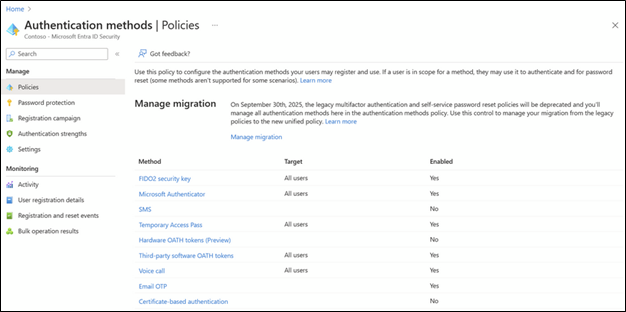
Organizations should identify what MFA methods they will support. Ideally, SMS and voice call MFA will be disallowed due to their vulnerability against SIM swapping attacks. More secure methods, such as FIDO2 security keys and authenticator applications, should be used.
Additional Tips:
- Don’t spontaneously change the Authentication Methods Policy. If you have users whose accounts are configured to MFA only via SMS or voice call, and then you restrict those methods, then the users could get locked out. If you are going to change your allowable authentication methods, then you should communicate the process to users along with a campaign to get users to register for the correct forms of MFA. You can identify users’ currently registered MFA methods via Entra ID > Authentication methods > Activity.
- There are two legacy dashboards that organizations may have used to manage their allowable MFA methods: the legacy MFA dashboard and the self-service password reset (SSPR) dashboard. To prevent policy conflicts, Microsoft recommends organizations switch to using only the Authentication Methods Policy now. Instructions for how to migrate from these legacy dashboards are available here: https://learn.microsoft.com/en-us/entra/identity/authentication/concept-authentication-methods-manage
Step 2: Determine How to Enforce MFA
Once you’ve determined what MFA methods to allow via the Authentication Methods Policy, then you can determine how MFA should be enforced. Entra supports three main ways to enforce MFA: (1) Security Defaults, (2) Per-User MFA, and (3) Conditional Access (recommended).
- Security Defaults (Entra ID > Overview > Properties > Security defaults) – Security Defaults are baseline, “out of the box” security settings for each Entra ID tenant. Security Defaults require all users to register for MFA, administrators to perform MFA every time they sign in, and non-administrators to perform MFA “when necessary” (as determined by Microsoft). While Security Defaults provide a minimum security foundation, their settings are not configurable.
- Per-User MFA (Entra ID > Identity > Users > All Users > Per-user MFA) – Per-User MFA enables administrators to configure MFA settings with more granularity than Security Defaults, such as whether to enforce MFA on trusted networks. However, Per-User MFA is configured on a per-user basis, so it’s easy for policy discrepancies or inadvertent security holes to develop overtime.
- Conditional Access (Entra ID > Conditional Access) – Conditional Access is Microsoft’s recommended way to enforce MFA. It’s a powerful, granular tool for configuring MFA for different users, groups, and applications under specified conditions with various enforced actions. Organizations must have at least an Entra ID P1 license in order to use Conditional Access.
Additional Tips:
- If you enable Conditional Access, Security Defaults and Per-User MFA should both be disabled to prevent policy conflicts. Microsoft provides guidance on how to disable both Security Defaults and Per-User MFA. However, just like how you shouldn’t make spontaneous modifications to the Authentication Methods Policy, you shouldn’t spontaneously enable Conditional Access and disable Security Defaults and Per-User MFA. A transition plan should be developed first to ensure no security holes are created during the transition and no users inadvertently get locked out of their accounts.
Step 3: Using Conditional Access
Conditional Access is enforced via policies. You can create your own policies from scratch or use Microsoft-provided policy templates. Every Conditional Access policy has configurable settings for targeting different:
- Users and groups
- Resources (e.g., applications)
- Networks
- Conditions (e.g., devices, geographic locations)
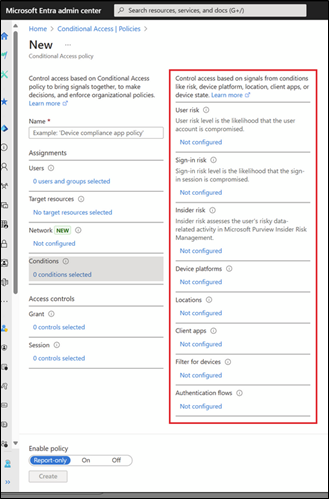
You can also configure various “Grant” actions, such as whether to allow access, deny access, require MFA, require a device to be marked as compliant or an application to be marked as approved, or whether to require the user change their password. Lastly, you can configure how long an authenticated session will last.
Organizations can configure the policies according to their own needs. However, Microsoft recommends that organizations have Conditional Access policies that match at least their “secure foundation” templates, which require, among other things:
- Users first register for MFA in secure ways via “securing security info registration”
- All users must MFA
- Legacy authentication must be blocked
- Devices must be compliant
As a general baseline, we encourage organizations to configure Conditional Access policies to require all users to MFA at least once a day to access resources. MFA should also be required every time a user attempts to access a sensitive resource (e.g., administrative dashboards or VPNs).
Additional Tips:
- Conditional Access policies can be used to govern many kinds of access, not just MFA. For example, you can create a policy that blocks access to resources from devices that use specific operating systems.
- Conditional Access policies should be deployed in “Report only” mode before being turned “On” to identify the impact the policy will have
Conclusion
Overall, Entra ID’s Authentication Methods Policy is used to define the allowable forms of MFA users have access to. MFA can be enforced via Security Defaults, Per-User MFA, or Conditional Access, although Conditional Access is the recommended solution as it has the most extensive configurable settings. Organizations can tailor Conditional Access according to their needs via various custom or prebuilt policies. Conditional Access policies support numerous settings that warrant exploration. At a minimum, all organizations should only allow the more secure MFA methods such as hardware security tokens or authenticator apps. All organizations should require all users to MFA at least once a day to access all resources, or to MFA every time when accessing sensitive resources.
We Can Help
Sedara’s Cybersecurity Development Program (CDP) and our virtual Chief Information Security Officers (vCISOs) can help you assess and implement improvements to your cybersecurity program, including designing secure Conditional Access policies that meet your needs.
Securing Entra ID and MFA should not require manually tracking every user, policy, and configuration. Sedara’s Attack Surface Management platform makes it easier to find identity and access gaps, understand what creates the greatest risk, and take action with clear remediation guidance.
ASM continuously monitors your environment for issues such as stale or inactive accounts, unnecessary privileges, MFA coverage gaps, and other identity-related exposures. As your environment changes, ASM helps you verify that fixes remain in place and quickly identify new risks.
Find the gaps. Prioritize what matters. Remediate with confidence. Continuously monitor your progress.